7 Best Automated Email Response Template Tools in 2026
Your inbox is a battleground, especially for founders, executives, and consultants. Every minute spent crafting replies is a minute lost on strategic work. Standard automated email responses often feel robotic, generic, and fail to capture critical context, potentially damaging client relationships or missing opportunities. The problem isn't automation itself, it's the lack of personalization. What if automation could finally sound exactly like you?
This guide moves beyond the static, lifeless "out of office" messages of the past. We are focusing on a new class of tools that use AI to learn your personal writing style, understand conversation context, and draft replies before you even open an email. The goal is to find an automated email response template generator that works for you, not against you.
We will directly compare seven leading solutions that create context-aware, human-sounding automated emails, saving you hours each week. For each platform, including Draftery, Google Workspace, and Microsoft Copilot, we will show you exactly how it works with screenshots and direct links. We'll cover:
- Core features and unique strengths.
- Who they're best for, from solo founders to enterprise support teams.
- Critical privacy considerations for handling sensitive data.
- Quick-edit tips for adapting drafts to your specific voice.
By the end of this roundup, you will have a clear understanding of which platform can turn your email workflow from a persistent time drain into a powerful strategic advantage, helping you respond faster, smarter, and more personally than ever before. Let's get started.
1. Draftery
Draftery stands out by shifting the focus from static templates to dynamic, AI-powered draft generation that learns your unique writing style. Instead of providing a generic automated email response template, Draftery.ai acts as an intelligent assistant within your Gmail, automatically drafting replies that sound just like you. The platform’s core function is to analyze your sent messages and create drafts that are ready for you to review, edit, and send, often before you even open the email.

For busy professionals, founders, and consultants who manage a high volume of email, this approach significantly reduces the time spent on repetitive communication. The key differentiator is its per-recipient voice matching, which builds distinct style profiles for each of your contacts. This means an email drafted for your CEO will have a formal tone, while one for a close teammate will be more casual, mirroring your actual communication patterns.
Key Features and Strengths
Draftery's design is centered on practical, real-world application, delivering tangible time savings and maintaining professional consistency.
- Per-Recipient Voice Matching: This is the platform’s signature feature. Draftery doesn't use a single, one-size-fits-all voice. It studies how you interact with different people-your tone, greetings, sign-offs, and even emoji use-to generate drafts that are contextually and relationally appropriate.
- Plug-and-Play Setup: Getting started involves a one-click connection to your Gmail account with read-only access. The AI begins learning from your sent mail immediately, with no complex configuration required.
- Continuous Improvement: The system gets smarter with every interaction. It tracks whether you send, edit, delete, or ignore a draft, using this feedback loop to refine its future suggestions and improve accuracy over time.
- Privacy-First Architecture: Draftery prioritizes data security. All data is encrypted in transit and at rest, stored on SOC 2 compliant servers, and is GDPR-compliant. Crucially, your email data is never used to train third-party AI models, and you can disconnect your account and delete all associated data at any time.
Why Draftery Is a Standout Choice
While it is not a full "set it and forget it" automation tool, Draftery excels at what it does: augmenting your email workflow rather than replacing it. Every draft is a suggestion, ensuring you maintain full control over your communications. This "human-in-the-loop" approach prevents embarrassing AI errors and allows for a short adjustment period as the model fine-tunes its understanding of your style. Users have reported saving over two hours daily, a significant productivity gain for anyone whose role is email-heavy. You can explore how this technology works in more detail by checking out their guide on the modern AI email writer.
The platform also includes a suite of free resources, including an Email Tone Analyzer and over 20 professional templates, making it a valuable hub even for those not ready for a paid subscription.
| Feature | Description |
|---|---|
| Voice Matching | Creates separate style profiles for each contact for personalized tone. |
| Setup | One-click, read-only Gmail integration for immediate use. |
| Data Privacy | Strong encryption, GDPR compliance, and no third-party model training. |
| Workflow | Generates reviewable drafts directly in Gmail, keeping you in control. |
Pricing and Availability
Draftery’s pricing is straightforward, with a 7-day free trial that does not require a credit card.
- Standard Plan: $19 per month for unlimited drafts and style analysis.
- Pro Plan: $39 per month for everything in Standard, plus priority draft generation, advanced controls, and multiple profile support.
- Discount: A 20% discount is available for annual billing.
Currently, Draftery is exclusive to Gmail. While it's not a complete automation solution, it offers one of the most effective and privacy-conscious ways for professionals to reclaim significant time from their inbox.
Website: https://draftery.ai
2. Google Workspace (Gmail “Help me write” with Gemini)
For teams and professionals already living inside Gmail, the most direct path to smarter email responses is the one built right into their inbox. Google Workspace’s "Help me write" feature, powered by Gemini, brings AI drafting and refinement capabilities directly into the Gmail compose window, eliminating the need for third-party applications or browser extensions. This native integration is its biggest strength, offering a seamless way to create an automated email response template with just a few clicks.
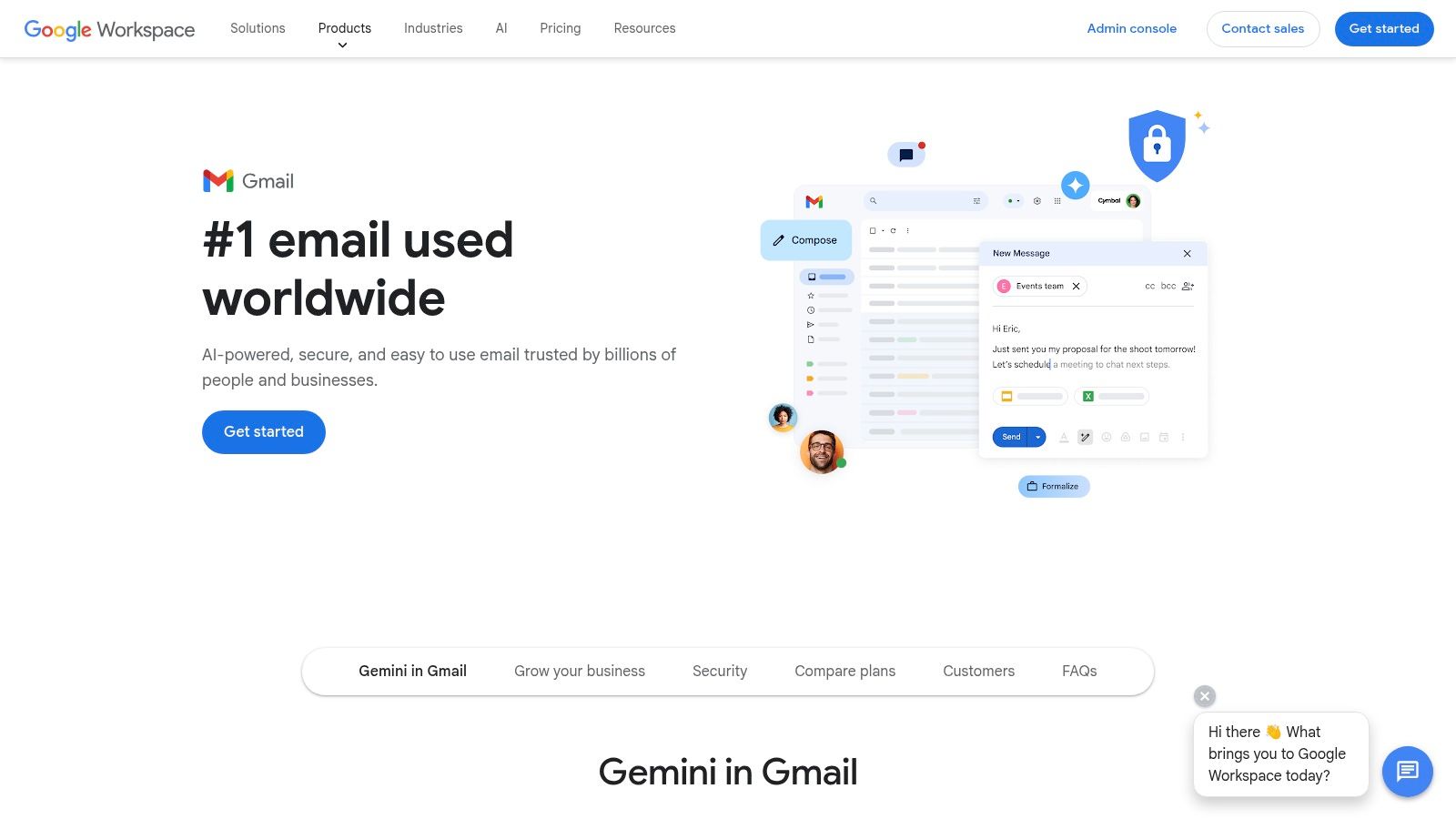
The user experience is straightforward. A small "Help me write" button with a sparkle icon appears in the compose toolbar. Clicking it opens a prompt where you can describe the email you need. For example, you could type, "Draft a polite response confirming receipt of a support ticket and setting an expectation for a 24-hour reply." The AI then generates a complete draft based on your instructions and the context of the email thread.
Key Features and Tone Controls
What makes this tool particularly useful for template creation are its one-click refinement options. Once a draft is generated, you can instantly adjust its tone and structure.
- Formalize: Makes the language more professional and suitable for client-facing communication.
- Elaborate: Expands on your points, adding detail and context.
- Shorten: Condenses the message for a quick, direct response.
- Polish: Improves grammar, phrasing, and overall flow.
These controls allow you to quickly cycle through variations of a base template to find the perfect fit for different situations without starting from scratch each time.
Practical Tips for Effective Use
To get the most out of "Help me write," provide clear, specific prompts. Instead of just "write a follow-up," try "write a friendly follow-up to a potential client I met at the Tech Summit, referencing our conversation about AI in logistics and suggesting a brief call next week." The more context you give, the better the output.
Once you create a response you like, save it as a standard Gmail template (Settings > See all settings > Advanced > Templates > Enable). This combination gives you the power of AI generation with the reliability of a saved, reusable reply.
Availability and Access
This feature is available to Google Workspace customers on most business and enterprise tiers, as well as individual users with the Google One AI Premium plan. Availability is being rolled out on both web and mobile versions of Gmail. For organizations, administrators have controls to enable or disable the feature across the company. Some users have noted that the rollout can be staggered, and a few have found the UI prompts persistent even when the feature is not in use.
Website: https://workspace.google.com/products/gmail/
3. Microsoft Copilot in Outlook (Microsoft 365)
For organizations deeply integrated into the Microsoft ecosystem, Copilot in Outlook presents a powerful, native solution for creating intelligent email responses. Rather than a separate tool, Copilot is woven directly into the Outlook interface, allowing users to draft, summarize, and refine emails without ever leaving their inbox. This deep integration is its greatest advantage, providing a secure and efficient way to produce an automated email response template that aligns with an organization's existing workflows and security standards.

The experience is designed for professional use. When replying to an email, a "Draft with Copilot" option appears, which uses the context of the entire thread to generate a relevant response. You can guide it with simple prompts like, "Write a formal reply acknowledging this request and state that our team will investigate and follow up within one business day." Copilot generates a draft that you can then accept, edit, or regenerate.
Key Features and Tone Controls
Copilot's strength lies in its ability to transform and adapt content quickly, making it ideal for creating versatile templates. It offers several built-in commands to adjust a draft instantly.
- Make it more professional: Elevates the language for formal business or client communication.
- Make it more casual: Shifts the tone for internal team messages or less formal interactions.
- Make it a poem: A creative option, but the core functions are more practical.
- Adjust length: You can ask Copilot to make the email shorter or longer with simple instructions.
These options allow you to generate a base response and then fine-tune it for specific audiences. The AI's ability to draw context from the conversation thread ensures the generated templates feel personalized and relevant.
Practical Tips for Effective Use
For the best results with Copilot, provide clear instructions that reference the email's context. Instead of just "draft a reply," try "draft a polite reply to Sarah, confirming we can meet at 3 PM next Tuesday and ask her if a Teams link works for the call." This specificity yields a much more accurate and ready-to-send draft. Once you've created a great response, you can save it using Outlook's "My Templates" add-in for quick reuse. Combining Copilot's generation with saved templates is a very effective workflow. If you want to dive deeper into these kinds of workflows, you can find more information about using an AI email response generator for different scenarios.
Availability and Access
Copilot for Microsoft 365 is available as an add-on for most Microsoft 365 Business and Enterprise plans. It requires a paid subscription per user, though Microsoft often provides promotional bundles and pricing for small to medium-sized businesses. Administrators have granular controls to manage access and review security settings. While a past bug involving confidential email processing was quickly patched, security-conscious teams should review their tenant settings to ensure they align with company policy.
Website: https://www.microsoft.com/en-us/microsoft-365-copilot/pricing-new
4. Superhuman Mail
For founders, executives, and sales professionals managing high email volume, Superhuman Mail presents an AI-native client designed entirely around speed and efficiency. It re-imagines the inbox as a command center, where creating an automated email response template is a core part of the workflow, not an afterthought. Its main distinction is how deeply AI is integrated into everyday actions like follow-ups, scheduling, and quick replies, aiming to save its power users hours each week.

The experience is built for keyboard-first navigation, with features like "Write with AI" and "Instant Reply" just a keystroke away. Instead of clicking through menus, you can prompt the AI to draft a complete message, summarize a long thread, or generate a polite “no” for you. This focus on speed makes it a prime choice for anyone whose primary work happens within their email client.
Key Features and Tone Controls
Superhuman’s AI features are purpose-built for common email tasks, helping you create and deploy response templates with minimal friction. The system learns your personal writing style over time to ensure its drafts sound authentic to you.
- Auto Drafts: Automatically prepares follow-up emails for you. If you set a reminder on a sent email, Superhuman’s AI will have a pre-written draft ready in your inbox when the reminder triggers.
- Instant Reply: Suggests one-click replies based on the email’s context, perfect for quick confirmations or simple answers.
- Write with AI: A versatile compose tool that can draft, edit, and rephrase emails based on your prompts, adjusting for tone, length, or clarity.
- Auto-labels & Splits: Automatically categorizes emails into dedicated "splits" or folders, helping you process similar inquiries in batches using the same templates.
These tools work together to reduce the cognitive load of managing a busy inbox, turning repetitive responses into a near-automated process.
Practical Tips for Effective Use
To maximize Superhuman's value, lean into its reminder-based workflow. When sending an important email, set a reminder for a few days later. When it reappears in your inbox, the AI-generated Auto Draft will be waiting, saving you the mental energy of composing a follow-up from scratch.
For recurring situations like scheduling or answering FAQs, use "Write with AI" to generate a perfect response once. Then, save it as a "Snippet" (Superhuman's version of a template) for instant reuse later. This gives you AI-powered creation and the reliability of a saved reply.
Availability and Access
Superhuman is a premium email client with subscription-based pricing. It currently offers a "Superhuman AI" plan and an "Advanced AI" plan, with the latter including more advanced features and CRM integrations. Due to its higher price point compared to mainstream clients, it provides the best return on investment for heavy email users who can justify the cost with significant time savings.
Website: https://superhuman.com/
5. Shortwave
For those who view their inbox as a command center rather than just a mailbox, Shortwave reimagines the email experience with AI at its core. As a Gmail-compatible client, it’s designed specifically to help busy professionals manage high volumes of communication efficiently. Its standout feature is an "AI executive assistant" that learns from your sent mail to generate personalized replies, making it a powerful tool for creating an automated email response template that authentically reflects your voice and style.

Shortwave’s approach goes beyond simple drafting. It provides instant AI summaries at the top of long email threads, allowing you to grasp the context quickly before replying. This combination of summarization and personalized generation means you can produce accurate, on-brand responses in a fraction of the time. The platform is purpose-built for faster triage, which is a major advantage for support teams, sales executives, and founders.
Key Features and Tone Controls
Shortwave’s strength lies in its ability to adapt to you. The more you use it, the better it gets at mimicking your tone, phrasing, and common sign-offs, reducing the need for manual edits.
- Personalized AI Writing: Generates draft replies based on the email's context and your past writing style, ensuring brand consistency.
- AI Summaries: Condenses complex threads into bullet points, so you can respond without rereading everything.
- AI Search: Allows you to find information across your entire email history using natural language queries, like "find the contract from Q3."
- Smart Labels & Bundles: Automatically triages and groups emails (like newsletters or notifications) to keep your inbox focused on important conversations.
These features work together to create a workflow where you can quickly understand an inquiry and generate a high-quality, personalized template response with a single click.
Practical Tips for Effective Use
To train Shortwave’s AI effectively, be consistent in your manual replies for the first few weeks. The AI learns from what you send, so a clean history of on-brand messages will yield better-automated drafts. Use the bundling feature to clear out non-essential mail so the AI can focus on learning from your important client and team interactions. Combining its AI drafts with its smart scheduling and reminder tools can turn your inbox into a full-fledged productivity system. You can explore how this type of tool fits into a broader strategy by learning more about the role of an AI email assistant.
Availability and Access
Shortwave is a Gmail-first product, though limited Outlook support is available. It offers a free "Personal" plan with limited AI use and tiered business plans (Pro, Business) that provide more generous AI credits, team collaboration features, and administrative controls. The feature limits are directly tied to the subscription level, so teams relying heavily on AI replies should opt for the Business plan. The user interface is clean and modern, designed to reduce clutter and promote focus.
Website: https://www.shortwave.com/pricing/
6. Front
For teams managing high volumes of customer communication, Front shifts the focus from individual inboxes to a shared, collaborative platform. It acts as a central hub where email, SMS, and social media messages are managed collectively, making it ideal for support, sales, and account management teams. Its AI features, Copilot and Autopilot, are designed specifically for this team-based environment, providing tools to create, manage, and deploy a consistent automated email response template across all channels.

What makes Front stand out is its emphasis on administrative oversight and human-in-the-loop workflows. Unlike tools designed for solo users, Front gives managers control over how AI is used. The AI Copilot suggests reply drafts based on past conversations and team templates, but a human team member always has the final say. This prevents errors and ensures brand voice consistency, even when automating responses.
Key Features and Tone Controls
Front’s AI is built for team efficiency and governance. Instead of simple tone adjustments, it offers structured systems for creating and monitoring responses at scale.
- AI Copilot: Auto-drafts suggested replies that agents can review, edit, and send. This speeds up response times while maintaining quality control.
- AI Autopilot: Goes a step further by executing controlled, autonomous actions based on predefined rules. For example, it can automatically categorize a support ticket, add a tag, and send a standard acknowledgment email without human intervention.
- Central AI Replies Hub: Admins can visit a dedicated hub to review all AI-generated drafts and sent replies, providing a clear audit trail and opportunities for coaching.
- Multi-channel Rules & Macros: You can build complex workflows that apply templates and actions across email, SMS, and social media, ensuring consistent responses regardless of the channel.
Practical Tips for Effective Use
To get the most from Front, lean into its team-based structure. Use the "AI Replies Hub" to identify common customer questions that receive similar AI-generated responses. Turn these successful AI drafts into official saved macros or templates that the entire team can access.
Combine rules with templates for powerful automation. For instance, create a rule that triggers when an email contains the word "invoice." The rule can automatically apply an "urgent" tag, assign it to the billing team, and use an AI-powered template to send an immediate confirmation that the request is being processed.
Availability and Access
Front is a premium, seat-based platform with several pricing tiers, starting with the "Starter" plan for small teams. The more advanced AI features like Copilot and Autopilot are typically included in higher-tier plans (Scale and Premier) or available as paid add-ons. This pricing model can become costly for larger organizations, especially since both the seat license and the AI features may be billed separately. It is best suited for teams where the efficiency gains from a unified communication hub justify the investment.
Website: https://front.com/pricing
7. Missive
For teams seeking deep automation and collaborative email management, Missive offers a powerful, all-in-one client that goes far beyond a standard inbox. It merges email, chat, and task management into a single platform, making it a command center for team communication. Missive’s strength lies in its fine-grained control over creating an automated email response template, combining shareable canned responses with a robust rules engine.
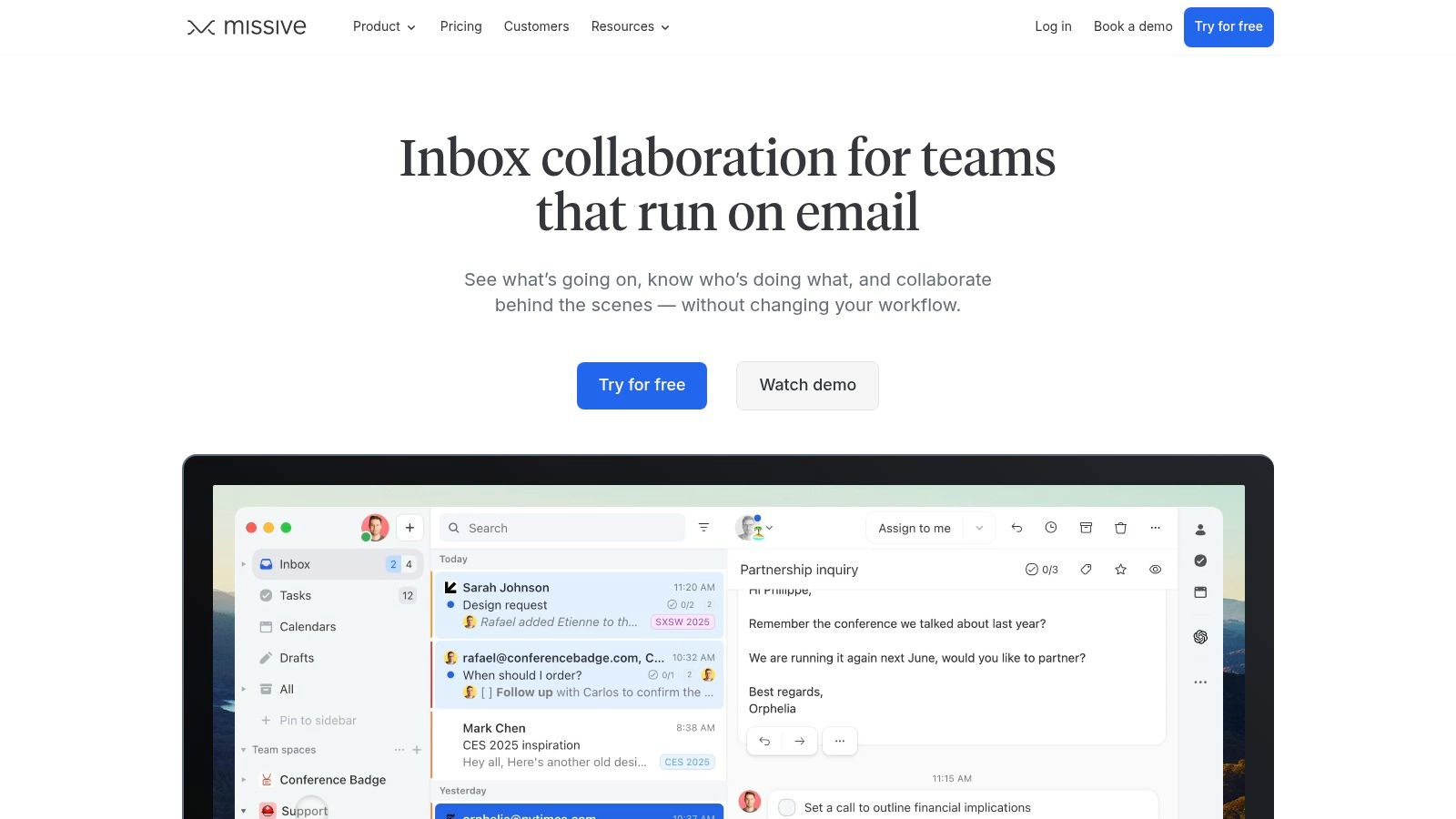
The platform is designed for teams that need to work together on customer inquiries, sales follow-ups, and support tickets. You can create, share, and edit response templates with colleagues, ensuring everyone uses consistent, on-brand messaging. This collaborative approach eliminates the need to manage separate documents of approved replies, keeping everything organized within the app.
Key Features and Tone Controls
Missive stands out by giving users granular control over their automation and AI, particularly with its bring-your-own-API-key model. This approach is ideal for teams that want cost control and customization.
- Shareable Canned Responses: Create templates with variables like
{{ recipient.first_name }}for quick personalization. These can be organized and shared across teams. - Powerful Rules Engine: Automate workflows by setting up triggers. For example, an email containing "support ticket" can automatically get a canned response and be assigned to the support team.
- AI Drafting (BYO Key): Integrate your own OpenAI API key to generate context-aware replies. The AI can even reference your library of canned responses to learn your team’s voice.
- Automatic Follow-ups: Schedule multi-step follow-up sequences to ensure leads or inquiries never fall through the cracks.
While the AI doesn't have one-click tone buttons like "Formalize," you can direct its tone in the prompt, such as "Draft a friendly and apologetic reply referencing our canned response for 'service outage'."
Practical Tips for Effective Use
To make the most of Missive, start by building a solid library of canned responses for your most common inquiries. Then, use the Rules engine to automate their deployment. For instance, you could set a rule that any email sent to sales@yourcompany.com after business hours receives an automated reply confirming receipt and promising a follow-up the next morning.
When using the AI feature, guide it by mentioning specific canned responses. This helps the AI generate replies that are not only context-aware but also aligned with your pre-approved messaging. This blend of structured templates and flexible AI generation is Missive's unique advantage.
Availability and Access
Missive is a subscription-based service with several pricing tiers, including a free plan for small teams of up to three users with limited history. Paid plans (Starter, Productive, and Enterprise) unlock more advanced features like unlimited history, integrations, and deeper automation.
The AI features require you to obtain and configure your own OpenAI API key, meaning you are responsible for the associated usage costs from OpenAI. While this requires more initial setup compared to all-in-one solutions, it gives you complete control over costs and prevents vendor lock-in.
Website: https://missiveapp.com/
Automated Email Response Template: 7-Tool Comparison
| Product | Implementation Complexity 🔄 | Resource Requirements ⚡ | Expected Outcomes 📊 | Ideal Use Cases 💡 | Key Advantages ⭐ |
|---|---|---|---|---|---|
| Draftery | 🔄 Low — one‑click Gmail connect; per‑contact profiles learn over time | ⚡ Minimal — subscription ($19/$39); read‑only Gmail access | 📊 High — personalized, on‑tone drafts; significant inbox time savings reported | 💡 Founders, consultants, executives, freelancers needing consistent per‑recipient voice | ⭐ Per‑recipient voice matching; privacy‑first; continuous improvement |
| Google Workspace (Gmail “Help me write” with Gemini) | 🔄 Very low — native Gmail feature, admin toggle | ⚡ Included in eligible Workspace / Google One AI plans; no extra apps | 📊 Moderate — fast drafting and refinement with tone controls | 💡 Organizations standardized on Gmail wanting built‑in AI | ⭐ Native integration; simple tone adjustments; centralized admin control |
| Microsoft Copilot in Outlook (Microsoft 365) | 🔄 Medium — tenant eligibility and admin configuration | ⚡ Requires eligible Microsoft 365/Copilot subscription or bundle | 📊 High — contextual drafting, summarization, and cross‑app assistance | 💡 Enterprises on Microsoft 365 needing deep Office & Teams integration | ⭐ Deep cross‑suite integration; enterprise security and governance |
| Superhuman Mail | 🔄 Low — install premium client; built for AI workflows | ⚡ Premium subscription; higher price point | 📊 High — very fast drafting, follow‑ups, and productivity boosts for heavy users | 💡 Power users, founders and sales teams with high email volume | ⭐ Speed‑focused UX; Auto Drafts, Instant Reply and reminders |
| Shortwave | 🔄 Low — Gmail‑compatible client with AI assistant | ⚡ Subscription with business plans and admin tiers | 📊 High — faster triage, AI summaries, and on‑brand replies | 💡 Teams needing quick triage, summaries and collaborative inboxes | ⭐ Instant summaries, AI filters, personalized replies; team plans |
| Front | 🔄 High — multi‑channel team setup, rules and governance | ⚡ Seat‑based pricing plus AI add‑ons; admin configuration required | 📊 High — consistent, governed responses across channels at scale | 💡 Support, customer success and account teams requiring oversight | ⭐ Robust admin oversight, Autopilot control, multi‑channel workflows |
| Missive | 🔄 Medium — configure rules, templates and OpenAI integration | ⚡ Subscription + your OpenAI API key costs (BYO‑LLM) | 📊 High — deep automation, shared templates, collaborative workflows | 💡 SMB teams wanting fine‑grained automation without vendor LLM lock‑in | ⭐ Powerful rules engine, shareable canned responses, BYO‑API control |
Your Next Step: Choosing the Right Email Automation Partner
We've explored a range of powerful tools, each offering a unique way to generate an automated email response template. The core lesson is clear: the most effective email automations are not static, copy-paste messages. They are dynamic, context-aware drafts that adapt to the situation, saving you time while preserving the quality of your communication.
From the built-in convenience of Google Workspace and Microsoft 365 to the speed-focused interface of Superhuman, your options are plentiful. The key is to move beyond simply managing your inbox and start using it as a strategic asset.
Key Takeaways from Our Review
- Context is King: The best tools don't just fill in a blank. They understand the email thread, the recipient, and your desired outcome to generate a relevant response.
- Personalization Matters: An automated email response template fails if it sounds robotic. The ability to inject your unique voice, tone, and style is what separates good automation from great communication.
- Workflow Integration is Crucial: The right tool fits seamlessly into how you already work. Whether you need a shared inbox for your team (like Front or Missive) or a smarter personal client (like Superhuman or Shortwave), minimal friction is essential for adoption.
How to Select Your Email Automation Tool
Choosing the right partner for your inbox depends entirely on your specific needs and priorities. Ask yourself these questions to guide your decision:
What is my primary goal?
- Are you aiming for raw speed and inbox zero? Superhuman or Shortwave might be your answer.
- Do you need to coordinate responses across a team? Front and Missive are built for collaboration.
- Is your main objective to save time while maintaining your authentic, personal communication style? A tool like Draftery is designed for this exact purpose.
Where do I work?
- If you live inside a specific ecosystem, the native AI assistants in Google Workspace (Gemini) and Microsoft 365 (Copilot) offer a powerful and integrated starting point. They provide solid drafts without needing a separate application.
Who am I communicating with?
- For internal team coordination or high-volume, standardized support, a template-heavy system works well.
- For building client relationships, nurturing leads, or networking, your personal voice is your biggest asset. This is where an AI that learns your style provides a distinct advantage, ensuring your automated assistance doesn't compromise your authenticity. An AI-generated automated email response template should still sound like you.
The ultimate goal is to find a solution that doesn't just clear your inbox but amplifies your ability to connect. It’s about delegating the repetitive task of drafting without losing the personal touch that builds trust and drives results. Your time is your most valuable resource; the right tool gives you more of it back.
Ready to see how AI can draft emails that sound exactly like you, in your own unique voice? Try Draftery and discover a smarter way to manage your inbox. Its privacy-first approach and focus on personal style make it the ideal partner for professionals whose relationships are built on authentic communication.