Gmail Group Mailing List: How to Create & Manage Yours
You're probably in one of three situations right now.
You keep emailing the same small group and you're tired of adding the same names again and again. Or you need one shared address for a team, department, or class. Or you want to send a similar message to many people, but you don't want it to read like a generic blast.
That's where most advice on a Gmail group mailing list falls short. It shows the clicks, but not the decision. The actual question isn't just how to make a list in Gmail. It's which method fits the job.
For day-to-day work, Gmail gives you three very different paths: Google Contacts labels, Google Groups, and mail merge workflows. They sound similar, but they solve different problems. Choose the wrong one and you get privacy issues, messy reply chains, or a setup that's heavier than you needed.
The Quick Method Using Google Contacts Labels
If you need the fastest possible Gmail group mailing list for a small, repeat audience, use Google Contacts labels.
This is the lightweight option. It works well when you regularly email the same people and you don't need a true shared group address. Think project updates, club reminders, family logistics, or a recurring note to a small internal team.
How to create the label
Open Google Contacts, not Gmail. That's where the list lives.
Then do this:
Create a clear label
In the left sidebar, create a new label with a specific name like “Project Phoenix Team” or “Weekly Client Check-in.”Select the right contacts
Check the people you want in that group. If someone isn't in your contacts yet, add them first.Apply the label
Use the label tool to assign those selected contacts to your new label.Use it in Gmail
Open Gmail, click Compose, and start typing the label name in the recipient field. Gmail will suggest it, and selecting it expands the label into individual email addresses.
That's the whole setup. It's simple because it's really just a reusable shortcut.
Why this works well
For repeat sends, this is the fastest workflow. A practical guide from Inbox Zero notes that the workflow is to select contacts, create a label, and type that label name in Gmail's To field to expand it into individual recipients. It also notes this is the quickest method for repeat sends, but it isn't a true mailing list and recipients will see the full list unless you use BCC. The same guide also notes that free Gmail accounts are limited to about 500 recipients per day for outbound sends, which matters if your list grows beyond casual use (Inbox Zero's Gmail group guide).
Practical rule: Use a contact label when speed matters more than structure.
What this method does not do
Here, people get tripped up.
A Contacts label is not a real group mailbox. It doesn't create one shared address. It doesn't give you a conversation archive. It doesn't offer moderation or role-based management. It just saves you from retyping addresses.
It also creates a privacy risk if you use it carelessly:
- Using To or Cc shows everyone who else received the email
- Using Bcc protects recipient privacy for announcements or external sends
- Replies can get messy because you're dealing with individual recipients, not a managed group
If your audience is informal and stable, labels are perfect. If you need governance, archives, or a real shared address, stop here and move to Google Groups.
The Professional Way with Google Groups
Google Groups is the right choice when you need a real mailing list, not just a shortcut.
Google Workspace describes Google Groups as a mailing list with its own email address that teams can use to communicate and collaborate more efficiently. Its documentation also highlights built-in conversation history and optional moderation, and notes that organizations, classes, and teams can create groups and choose settings for them. That's the clearest signal of what this tool is for: structured communication, not ad hoc recipient bundling (Google Workspace help for Google Groups).

When Google Groups is the better call
Use Google Groups when the address itself matters.
Examples:
- A department inbox like hr@yourcompany.com
- A team list like product-team@yourcompany.com
- A class or committee address that needs continuity even as members change
- Any setup where archived conversations matter
This method centralizes membership around one address. That's a big operational difference. People email the group address, and the system handles distribution based on current membership.
How to set it up properly
Go to groups.google.com and create a new group. During setup, pay attention to the settings, because the settings are what make Google Groups useful.
Focus on these decisions:
Who can join
Open groups make sense for communities. Controlled groups make more sense for internal teams.Who can post
For announcements, keep this limited. For collaboration, allow member posting.Who can view members
This matters for privacy and organizational transparency.Moderation and permissions
Use moderation when posts need review before distribution.
Here's a walkthrough if you want to see the interface in action:
Why teams stick with it
A Google Group gives you things labels can't:
- A dedicated email address people can remember and reuse
- Conversation history that doesn't disappear when one employee leaves
- Membership control managed by owners or admins
- Moderation options for more formal communication
For business communication, the archive is often as valuable as the mailing function.
The trade-off is setup overhead. For a five-person informal working group, Google Groups can feel heavier than necessary. But once the list becomes part of a team process, that extra structure starts saving time instead of adding friction.
Personalizing at Scale with Mail Merge
Sometimes a Gmail group mailing list is the wrong answer, even when you are emailing many people.
If the message should feel personal, neither contact labels nor Google Groups is ideal. Both are built for one message to many recipients. They are not built for individualized outreach where each person should see their own name, their own company context, or a slightly different version of the message.
What mail merge is good at
Mail merge sits in the middle.
It lets you send one core message while inserting small pieces of recipient-specific information, such as a first name or company field. In practical terms, that's better for outreach, client updates, event follow-ups, or reminders where you want the email to feel directed to one person, not broadcast to a crowd.
This can be viewed as:
- Contacts labels = reusable recipient shortcut
- Google Groups = managed shared mailing address
- Mail merge = same message framework, personalized fields
Where native Gmail-style personalization stops
Basic mail merge can improve readability, but it still has limits. A first name tag is useful. It is not the same as writing differently to a longtime client than you would to a new prospect.
That's the gap many professionals run into. They start with merge fields, then realize the challenge isn't inserting variables. It's preserving tone, relevance, and relationship context across a large set of emails.
If you want a practical walkthrough for document-based campaigns, this Google Docs mail merge tutorial is a helpful reference because it shows how the workflow fits together beyond simple list sending.
When to move beyond simple merge tags
Use mail merge when the message is mostly identical, but the framing should feel personal.
That often applies to:
- Client announcements that need a name and account detail
- Sales follow-ups built from one strong base template
- Event reminders with personal details added in
- Professional outreach where generic blasts would feel lazy
If your needs go further than field replacement, the next step is usually automation that helps with email quality, not just recipient insertion. For that broader shift, this guide on email automation for small business is useful because it frames automation as a workflow decision, not just a sending trick.
A mail merge makes one message look personal. It doesn't make every message truly unique.
That distinction matters. For many teams, mail merge is enough. For relationship-driven work, it often isn't.
Comparing Your Options Which Method Is Right for You
What's often needed isn't more features. It's fewer mistakes.
The easiest way to choose your Gmail group mailing list setup is to start with the communication goal. Are you trying to save time on repeat sends, run a formal team address, or send individualized outreach at scale? Once that's clear, the right method usually becomes obvious.
Gmail group mailing methods compared
| Method | Best For | Privacy Control | Scalability | Personalization |
|---|---|---|---|---|
| Google Contacts labels | Small repeat sends, informal internal groups, family or club emails | Weak unless you deliberately use BCC | Good for small to moderate repeat lists, but less suitable for larger outreach | Very limited |
| Google Groups | Team addresses, departments, classes, formal internal communication | Stronger because membership and posting rules can be managed centrally | Better for ongoing organizational use | Low |
| Mail merge | Outreach, client communication, updates that need personal fields | Strong, because messages go out per recipient workflow | Better when the same message framework goes to many people | Moderate to strong, depending on tool |
A simple way to decide
Choose Contacts labels if all of these are true:
- The audience is small and familiar
- You need setup to take minutes
- You're comfortable managing privacy manually with BCC
- You don't need a shared address or archive
Choose Google Groups if these sound more familiar:
- The group should have its own email address
- Membership changes over time
- You want controlled posting or moderation
- You need a searchable record of discussion
Choose mail merge when the recipient should feel individually addressed.
One helpful mental shortcut is this: labels are for convenience, Groups are for structure, and mail merge is for relevance.
If you want to improve the rest of your Gmail workflow around these methods, this roundup of Gmail productivity tools is a useful next read.
The common misfire
The biggest mistake is using a contact label for something that really needs Google Groups, or using a group blast when the audience expects one-to-one communication.
That's when people run into visible address lists, chaotic replies, or messages that feel impersonal. The tool wasn't wrong. The fit was.
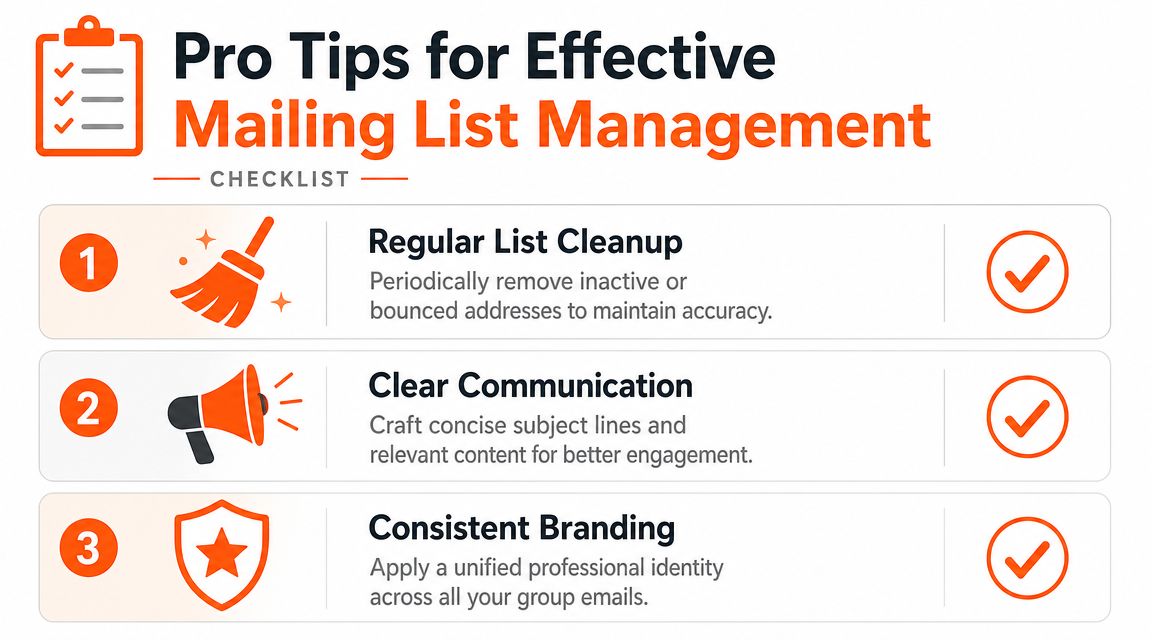
Pro Tips for Managing Your Mailing List
Creating a Gmail group mailing list is the easy part. Keeping it useful is where many groups slip.
Bad list management shows up in small ways first. Someone gets added late. Someone who left still receives updates. A private announcement goes out with every address visible. Then one day a simple send creates an avoidable problem.
Keep replies under control
The reply experience changes depending on the method you picked.
With Contacts labels, recipients are just individual addressees on the same message. That means reply-all can get noisy fast. For announcements, BCC is often the safer move because it keeps the message one-way unless someone replies directly.
With Google Groups, the group behavior is more structured. Stanford's Google Workspace guidance notes that admins or owners add members in groups.google.com and can set delivery modes such as All email, Digest, or None, which directly affects how much mail members receive and how quickly they see it. The same guidance warns that removing members requires care, including not removing yourself and losing access, which is exactly why permission control and member audits matter in practice (Stanford mailing list management guide).
Small email systems break in boring ways. Usually through stale membership and loose permissions.
Schedule sends and name lists clearly
Two habits make a bigger difference than people expect:
Use descriptive list names
“Ops Weekly” is clearer than “Team List.” Good names reduce send errors when you're moving quickly.Use Schedule send in Gmail
If the message is ready now but should land later, schedule it. That gives you time to catch mistakes and keeps communication arriving at a more useful moment.Test before broad sends
Send to yourself or a very small subset first if the list is important or newly updated.
Protect privacy and list health
A few rules are worth treating as absolute:
Use BCC for privacy-sensitive broadcasts
This matters most for clients, external contacts, and mixed audiences.Review members regularly
If the list changes with projects, roles, or classes, stale membership is almost guaranteed unless someone owns the cleanup.Limit admin access in Google Groups
Too many owners often leads to accidental setting changes.
If your workflow also involves forms, notifications, or app-generated emails, understanding Gmail sending infrastructure helps. This Static Forms guide to Gmail SMTP is a useful technical companion because it explains how Gmail-based sending works in broader setups.
For day-to-day inbox cleanup after group sends start coming back in, a guide to a Gmail inbox organizer can help keep follow-ups from taking over your day.
Beyond Group Blasts The Future Is Personal
A Gmail group mailing list is still one of the most useful shortcuts in email. The trick is using the right version of it.
Use Google Contacts labels when speed matters and the audience is small. Use Google Groups when the address, archive, and permissions matter. Use mail merge when the message needs a personal layer without becoming fully custom.
But there's a ceiling to all three.
A broadcast is still a broadcast. Even a polished one. The moment the relationship matters, client, prospect, investor, executive, partner, the best email usually isn't the most efficient blast. It's the message that sounds like it was written for that specific person.
That's why high-volume professionals eventually move beyond group sending as their main strategy. They still use lists for updates and announcements. But for the emails that shape trust, close work, and keep relationships warm, they need something closer to real one-to-one communication.
If you spend too much time writing individual emails but still care how they sound, Draftery is worth a look. It drafts Gmail replies in your own voice, with tone that changes by recipient, so your email to a client doesn't sound like your email to a teammate. You stay in control, every draft is editable, and the result is faster email that still feels personal.