How to Save Email Outlook: A Complete 2026 Guide

You've just wrapped a project, a contract negotiation, or a support escalation. The inbox thread is long, the attachments matter, and someone asks the question that always shows up late: “Can you save all of this somewhere safe?”
That's where most Outlook advice falls apart. It tells you where the Save As button lives, but not what you should really save, what format holds up later, or what you'll regret when the mailbox changes, the laptop dies, or legal asks for a complete record.
Saving email in Outlook isn't one task. It's several different tasks that happen to look similar on the surface. A readable copy for a manager is one thing. A defensible archive is another. A full mailbox backup is something else entirely.
Why You Need a Smart Way to Save Outlook Emails
A lot of people search for how to save email in Outlook when they're already under pressure. The account is about to be closed. An employee is leaving. A client dispute is heating up. Or the mailbox is too crowded and nobody wants to lose the thread that explains why a decision got made.
That's why “save email Outlook” is more than a convenience workflow. It's a records problem, a continuity problem, and sometimes a compliance problem.
Microsoft Outlook has been doing this job for a very long time, and it's still used at massive scale. Recent industry estimates put Outlook at more than 400 million active users worldwide according to Outlook usage statistics. At that scale, the built-in export and save options aren't edge features. They're part of how companies preserve business communication every day.
The real question isn't how to click save
If you only need to send a readable copy of one email to a colleague, a PDF may be enough. If you need the original message structure, metadata, and attachments intact, MSG or EML is usually the better choice. If you need to preserve a whole folder or mailbox, you're in PST territory.
Those aren't minor differences. They affect:
- What stays searchable inside Outlook
- What another person can open without Outlook
- What holds the original context of the message
- What becomes risky if it ends up stored on only one device
Practical rule: Save the email based on the future use, not the current inconvenience.
I've seen teams waste time because they picked the format that felt easiest in the moment. Six months later, they had a folder full of PDFs that looked fine to humans but were painful to review as records. I've also seen the opposite. People dumped everything into a local PST to “clean up Outlook,” then learned too late that the file lived on one PC and nowhere else.
A smart method starts with one question: What do you need this saved email to do later?
Saving Individual Emails on Desktop and Web
When you need to preserve one message quickly, Outlook gives you several paths. The right one depends on whether you use the desktop app or Outlook on the web, and whether you care most about readability, portability, or preserving the original message structure.
Save a single email in Outlook desktop
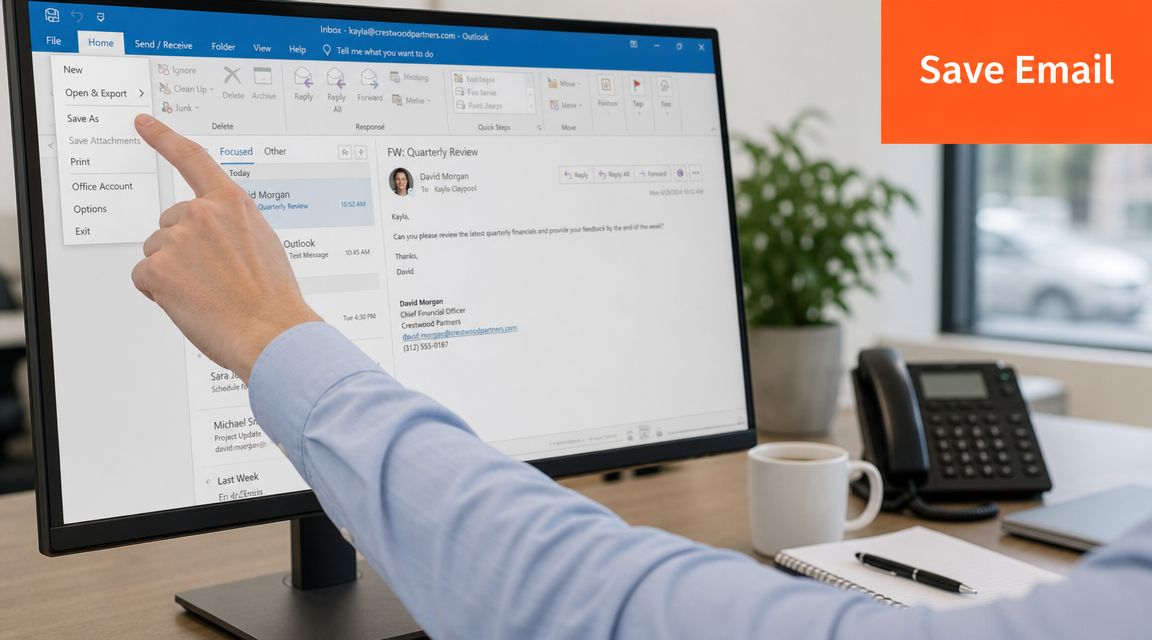
On the desktop app, the classic method is built into Outlook itself. Microsoft documents that you can open the message, go to File > Save As, and choose formats such as Outlook format, HTML, or Text Only. That built-in path is part of Outlook's long-standing save workflow, as noted in the earlier Outlook usage reference.
In practical use, these are the formats that matter most:
MSG Keeps the message in Outlook's native style. Best when you want to reopen the email in Outlook later with much of its original structure intact.
HTML Good when you want a browser-friendly version that preserves visual layout better than plain text.
TXT Useful for plain content capture, note systems, or lightweight text search. Not good for preserving formatting.
Some desktop versions of Outlook also expose additional formats depending on version and configuration, but the safe working assumption is that MSG, HTML, and TXT are your main day-to-day options.
When each desktop format works best
Use MSG when the email itself is the record.
Use HTML when you want something easy to open outside Outlook but still reasonably faithful to the original appearance.
Use TXT when only the text matters and you don't care about layout, inline images, or polished presentation.
Here's a quick desktop workflow that works for most users:
- Open the message you want to keep.
- Click File.
- Choose Save As.
- Pick the destination folder.
- Select the file type that matches your need.
- Save it with a filename that will still make sense later.
A bad filename creates future pain. “email.msg” tells you nothing. A better pattern is client, topic, and date.
Save with context in the filename. “Acme contract revision 2026-04-18.msg” is useful. “message1.msg” isn't.
Save a single email in Outlook on the web
Outlook on the web handles this differently. Microsoft's guidance says messages can be saved as .eml, PDF, or draft through the web experience, as shown in Microsoft's Outlook web save options.
That gives you two practical choices for most users:
- EML for preserving the message as an email file
- PDF for a clean, shareable, human-readable copy
If you're in Outlook on the web and need a PDF, the usual route is the print function, then save to PDF using your browser or operating system's print destination.
Web save choices by use case
Choose EML if another mail client may need to open the message later, or if you want a mail-file format rather than a flattened document.
Choose PDF if your main concern is readability, sharing, or attaching the message to a report, approval pack, or case file.
A short walkthrough for Outlook on the web:
- Open the email.
- Use the message actions menu.
- Choose the available save option if EML is offered in your environment.
- If you need PDF, use Print and then select Save as PDF.
This matters more than people think. A PDF is often the easiest thing to circulate, but it may not answer the harder records questions around message headers, conversation continuity, or audit review.
A quick visual walkthrough helps if you're supporting less technical users:
A common mistake with threads
People often think they've saved “the thread” when they've only saved the currently open message. Outlook conversation views can hide that problem. The screen shows a long exchange, but the file you save may represent just one item.
If the full thread matters, check whether you need to save each message, move the conversation into a dedicated folder before export, or use a mailbox-level approach instead of single-message saving.
Choosing the Right Format PST vs PDF vs MSG
Most articles stop at the button clicks. The harder question is the one professionals truly value: how to preserve an email in a way that stays searchable, auditable, portable, and fit for its intended use case. Microsoft's own guidance helps with mechanics, but that decision framework is the gap many users run into, as reflected in the earlier Microsoft support reference.
Outlook save format comparison
| Format | Best For | Searchability | Portability |
|---|---|---|---|
| PST | Folder-level or mailbox-level archive, backup, migration | Strong inside Outlook when attached properly | Moderate, best when opening in Outlook |
| Sharing, review, human-readable record | Limited compared with native mail formats | High, easy to open widely | |
| MSG | Preserving an individual Outlook message with native context | Good within Outlook-based workflows | Moderate, best for Outlook users |
| EML | Individual message portability across mail systems | Good in many mail clients | High |
| HTML | Readable copy in a browser | Moderate, depends on file handling | High |
| TXT | Raw text capture | High for plain text, low for message context | Very high |
The simplest decision framework
Choose PST when you need to preserve many emails together. It's the right option for backup, migration, or folder-level archiving.
Choose MSG when one email matters and Outlook is part of the workflow on the receiving side.
Choose PDF when the recipient doesn't need Outlook and just needs a readable, fixed copy. If later review depends on extracting structured content from those PDFs, tools focused on PDF text, tables, and JSON extraction can help pull usable data back out.
If your reason for saving is to get under an attachment limit, that's a different problem from archiving. In that case, it helps to understand how big of a file you can email before you decide whether saving locally is even the right fix.
A saved email is only “saved” if it stays usable for the person and process that will need it later.
What usually fails
PDF is often overused. It's excellent for readability, but weak if you later need message-level fidelity.
PST is also overused. It's powerful for bulk preservation, but clumsy for quick sharing and dangerous if treated as the only copy.
MSG sits in the middle. It's often the best answer for one important email inside an Outlook-centric team.
Bulk Exporting and Archiving for the Long Term
When one email isn't enough, Outlook's export workflow is still the standard method for long-term archiving and migration. Microsoft's export path allows users to go through File > Open & Export > Import/Export > Export to a file, then create an Outlook Data File (.pst) that can include selected folders and subfolders, as described in Lookeen's overview of Outlook backup and export workflows.
That historical pattern matters because Outlook archiving was never only about preserving a single message. It was about keeping a business record that remained organized across folders and years of correspondence.

How to export a mailbox or folder to PST
The core process is straightforward:
- Open Outlook.
- Go to File.
- Select Open & Export.
- Choose Import/Export.
- Select Export to a file.
- Pick Outlook Data File (.pst).
- Choose the mailbox, folder, or subfolder set you want to export.
- Set the destination path.
- Finish the export.
The detail that people often miss is the folder selection step. If you want the entire structure, include subfolders. If you only need one branch of the mailbox, export that branch only.
Backup versus local archive
At this point, many teams encounter difficulties.
A backup PST is a preservation copy. You keep it somewhere protected, and the live mailbox continues to be the working environment.
A local archive PST is often used to move messages out of the main mailbox to free up space. That can work, but it changes the operational risk. If the PST sits only on one desktop, that desktop becomes the weak point.
Here are the practical trade-offs:
For backup Better for recovery, migration, and historical retention. Store it somewhere deliberate, not on a random desktop folder.
For mailbox cleanup Useful when users need to reduce mailbox bloat, but only if the archive file is included in your broader backup routine.
For account transitions Helpful when a mailbox is changing or access may end, but the exported file should be validated before the original mailbox is decommissioned.
If the PST is the only copy and it lives on one machine, you haven't solved a storage problem. You've created a recovery problem.
Where to store the exported PST
Microsoft-oriented guidance commonly treats exported PST files as portable. In practice, teams store them on external drives, network locations, USB media, or cloud-synced storage depending on policy and sensitivity.
What matters is not the destination type alone. It's whether the location is:
- Backed up
- Access-controlled
- Documented
- Recoverable by someone other than the original user
If you're exporting regularly, the archive folder structure matters just as much as the export itself. The cleanest setups use a consistent naming standard and a simple archive index so people can tell what each PST contains.
If inbox sprawl is part of the reason you're archiving in the first place, it also helps to tighten mailbox habits before the export problem gets bigger. A practical starting point is this guide to a desktop inbox organizer.
What works and what doesn't
What works: exporting by project, department, or time period, then storing the PST somewhere managed.
What doesn't: one giant unlabeled PST on a user desktop called “archive-final-final.pst”.
Bulk export is powerful. It's just not self-managing. The file only becomes a reliable archive when someone treats it like a record, not a dump.
Advanced Workflows and Saving on Mobile
Saving email gets harder on mobile because the app experience is built for triage, not records handling. Outlook for iPhone and Android is fine for reading, forwarding, flagging, and quick filing, but it's limited compared with desktop when you need a true Save As workflow.

What to do on mobile when direct saving is limited
On mobile, the most reliable options are usually workarounds:
- Share to PDF using the device print dialog if available
- Forward to a records mailbox for later desktop processing
- Move the email into a dedicated folder that you'll export from desktop later
- Save attachments separately into OneDrive, Files, or another managed location
That last option matters when the attachment is the primary asset and the email body only provides context.
If your team routes important messages to another mailbox for central handling, it's often cleaner to automate that path than to rely on users remembering manual saves. For teams exploring routing logic, this guide on how to setup email forwarding in Outlook is useful background.
Rules that reduce manual saving
On desktop Outlook, Rules can do part of the filing work for you. They won't magically create a perfect compliance archive, but they're excellent for reducing repetitive handling.
Useful patterns include:
Sender-based filing Move invoices, client notices, or system alerts into a folder that gets exported on a schedule.
Keyword-based routing Catch subjects like contract, renewal, termination, or purchase order.
Shared-process folders Push project-related email into a team-reviewed folder instead of leaving it in one person's mailbox.
Rules are strongest when the classification criteria are obvious. They're weak when the meaning of the message depends on context.
Quick Steps for one-click handling
Quick Steps are underrated. If you repeatedly move messages into an archive folder, flag them for review, or prepare them for follow-up processing, a Quick Step can turn that into one click.
A common setup is:
- Create a folder such as “Save to Archive Review.”
- Build a Quick Step that moves selected messages there.
- Review and export that folder at set intervals.
That's much faster than saving each message manually, and it avoids the false confidence of thinking every important message needs its own standalone file right away.
For teams trying to reduce the time spent on repetitive inbox decisions overall, broader automation approaches can help too. This article on AI for email management covers where automation is useful and where human review still matters.
Mobile is for capture and routing. Desktop is where serious Outlook archiving still gets done.
Fixing Common Errors and Answering Key Questions
The biggest confusion in Outlook saving workflows isn't technical. It's conceptual. Many users treat saving, exporting, moving, and archiving as if they were the same thing. They aren't. Independent guidance on local PST workflows warns that messages moved into a local PST are stored only on that PC and need regular backup, as explained in this local PST storage walkthrough.
Why won't Outlook let me export to PST
If Outlook says the data file is in use, close any extra Outlook windows and check whether another process has the PST open. Restarting Outlook often clears simple file-lock issues.
If the export stalls, narrow the export scope. Try one folder first. Very large folders, damaged items, or sync state problems can all interfere with clean export runs.
Why did saved messages disappear from my mailbox
You probably moved them instead of saving a copy. That often happens when users drag mail into a local PST folder. The messages still exist, but now they live in that PST, not in the mailbox.
That's fine if it was intentional and backed up. It's bad if nobody realized the local machine was now the only place holding the record.
Can I save just the attachments from multiple emails
Yes, but Outlook's native workflow is better for one-off extraction than bulk attachment processing. For repeated attachment-heavy work, many teams use rules, manual folder staging, or add-ins to collect those messages first and then process attachments in batches.
Can I save emails from a shared mailbox
Usually yes, if you have the right permissions and the mailbox is available in your Outlook profile. The exact behavior depends on how the shared mailbox is configured and whether you're saving one message or exporting folder content.
Is PDF good enough for legal or compliance use
Sometimes. It depends on what the receiving process requires. A PDF is excellent for human review and circulation. It may be less suitable when you need original message structure, full metadata, or mailbox-level context.
What's the safest everyday approach
For one important message, save a copy in the right single-message format and keep it in a managed location.
For an entire folder, export to PST and back it up.
For mailbox cleanup, don't move email into a local PST unless you already know how that PST will be protected, located, and recovered later.
If your Outlook archive process still depends on one person remembering a manual step every time, it's fragile. The method should survive a busy week, an employee departure, and a laptop failure.
If your bigger problem isn't just saving emails, but replying to them fast without losing your tone, Draftery is worth a look. It's a Gmail-focused AI email assistant that drafts replies in your own writing voice, with different style patterns for different recipients. You stay in control, review every draft, and send only what you want. For busy founders, consultants, executives, and freelancers, that's a practical way to cut email workload without sounding generic.