10 Productivity Tools for Remote Workers in 2026
The Remote Work Paradox. More Tools, Less Productivity?
The average professional spends over 250 hours a year on email. Add chat, project boards, shared docs, and video calls, and remote work can start to feel like app-hopping instead of actual work. That's the paradox. Remote teams often have more flexibility, yet many people still lose hours switching between tools that were supposed to save time.
The good news is that remote work is no longer a niche setup. 22.8% of U.S. employees worked remotely at least part-time as of March 2025, which means the best productivity tools for remote workers have had time to mature. The bad news is that mature software also means overlapping features, bloated subscriptions, and a lot of shiny AI that doesn't solve the actual bottleneck.
In practice, most remote teams don't need more tools. They need a cleaner stack and clearer rules for when each tool gets used. Chat should handle quick alignment. Your project system should hold decisions and deadlines. Video should explain what text can't. Email should not eat half the day.
That last point matters more than most listicles admit. Existing content on productivity tools for remote workers usually covers project management, communication, and time tracking, but it often skips the fact that remote professionals spend 28% of their workweek, or over 13 hours, on email. For founders, consultants, freelancers, and managers, that's often the biggest leak in the whole system.
This list focuses on tools by job-to-be-done. Not “best all-around platform.” Not “top 10 apps everyone should use.” Just battle-tested tools that do a specific job well, plus the trade-offs that show up after the honeymoon period ends.
1. Draftery

Remote professionals already spend a big slice of the week in email. If your team runs client work, recruiting, sales, partnerships, or executive coordination through Gmail, that inbox time usually becomes the first bottleneck to fix.
Draftery stands out because it focuses on one job: drafting replies that sound like the person sending them. That sounds narrow. In practice, it matters more than another general AI writer with a chat box and a blank prompt.
Generic AI can produce a usable reply. The failure point is review time. If a founder, account lead, or recruiter has to rewrite tone, trim filler, restore missing context, and make the message sound human again, the tool saved very little. Draftery learns from sent mail history and adapts drafts to the way you write, including how your tone shifts by recipient.
That per-recipient behavior is the product.
What it does better than generic AI writers
Draftery connects to Gmail with read-only access, analyzes your sent emails, and places reply drafts directly into your Gmail Drafts folder before you open the thread. The workflow is simple: open Gmail, review the draft, edit if needed, send. It does not auto-send, which is the right trade-off for external communication.
That setup is more useful than a separate writing interface because it keeps the work inside the inbox your team already uses. It also cuts the extra step that kills a lot of AI tools. If people have to copy a thread into another app, they stop using it after the novelty wears off.
Coverage of remote productivity stacks usually emphasizes chat, project management, docs, and scheduling. Email automation gets less attention, even though it often carries client communication and follow-up across the whole system. Teams comparing options for the communication layer should also look at remote team communication tools that cover chat, async video, and coordination workflows. Draftery fills the email drafting gap in that stack, and Draftery's email writing approach is built around preserving voice rather than producing generic copy.
Practical rule: AI email only saves time when editing is faster than writing the reply yourself.
A few implementation choices make it more credible than the average AI add-on:
- Per-recipient profiles: client replies can stay formal while internal notes stay lighter and faster
- Drafts in Gmail: no new workspace to manage, no copy-paste routine
- Human review stays in place: better for sensitive replies, approvals, and relationship-heavy conversations
- Privacy controls: read-only Gmail access, encrypted data, GDPR-friendly policies, and the option to disconnect and delete data
Where it fits in a remote workflow
Draftery works best as part of a chain, not as a standalone magic fix.
A common workflow looks like this: Calendly books the meeting, Gmail receives the confirmation or follow-up thread, Draftery prepares the reply, Google Calendar holds the event, and Notion or Asana stores decisions and next steps. That division of labor is cleaner than trying to manage scheduling, communication, and task tracking from one tool.
I would use Draftery for repeatable but high-stakes replies. Client follow-ups, candidate responses, partner outreach, meeting confirmations, and post-call summaries are good fits. I would not rely on it for delicate conflict emails, unusual negotiations, or anything so context-heavy that the sender needs to shape every sentence personally.
The trade-offs are clear. Draftery is Gmail-only today, so Microsoft-heavy teams should skip it. It also needs a learning period before drafts become consistently close to send-ready. Early on, users with very inconsistent writing styles or lots of edge-case conversations will still do more editing.
Still, for remote teams whose real productivity problem is inbox drag rather than task management, Draftery addresses the bottleneck directly. Pricing starts at $19/month for Standard and $39/month for Pro, with a 7-day free trial and no credit card required on the product site.
2. Slack

Slack is still the default chat layer for a lot of remote teams, and for good reason. It handles fast coordination better than email, and it keeps discussions attached to channels instead of buried in individual inboxes.
When Slack works, it replaces status meetings, scattered DMs, and a lot of “just checking in” email. When it fails, it becomes a second inbox with worse boundaries.
Best use case
Slack is strongest for quick alignment, lightweight collaboration, and cross-functional visibility. Channels, huddles, screen sharing, and app integrations make it useful across engineering, sales, operations, and support. If your team also works with agencies, clients, or contractors, Slack Connect can keep those conversations out of internal channels.
Tools like Slack and Microsoft Teams have become standard in remote collaboration stacks, and Atlassian and Loom both recommend that kind of messaging layer as part of a core remote toolkit for teams that need smoother coordination across time zones, as noted in this roundup of remote and hybrid work tools.
Keep Slack for decisions that need speed. Move anything with ownership, deadline, or approval into your project system.
The trade-offs nobody mentions early enough
Slack needs discipline. Without channel rules, naming conventions, and a clear line between chat and project management, it creates noise fast. Teams often add too many channels, overuse mentions, and let important decisions live in threads that nobody can find a week later.
The newer AI summaries help with catch-up, especially for distributed teams who wake up to long channels. But AI summaries don't fix bad communication habits. They just soften the damage.
A setup that usually works:
- Channels for teams and projects: Keep recurring work visible.
- DMs for short-lived issues: Don't let private chat become hidden work management.
- Integrations for alerts, not everything: Jira, Google Drive, and calendar notifications are useful. Random app spam is not.
Slack is one of the better productivity tools for remote workers when you treat it as a communication layer, not the system of record. The moment teams start storing decisions only in Slack, clarity drops.
3. Notion

Notion is what I reach for when a remote team's main problem isn't communication. It's knowledge sprawl.
The challenge isn't solely task tracking. There's also the difficulty of "Where does this live?" Process docs are in Google Docs, meeting notes are in random files, project briefs are in chat, and onboarding knowledge exists mostly in someone's head. Notion solves that better than most tools because pages, databases, and linked references all live in one workspace.
Where Notion earns its place
Notion is best for teams that need a shared operating manual. Policies, playbooks, client delivery docs, product specs, meeting notes, content calendars, and lightweight project views can all sit in one place without feeling like separate systems.
That matters because remote workers do better with fewer context switches. Structured tool adoption correlates with stronger productivity outcomes, and broad use of project and collaboration software has become a major part of how remote teams stay organized, as summarized in this guide to improving workplace efficiency.
A few practical uses that work well:
- Company wiki: Onboarding, SOPs, and role expectations.
- Project hub: Brief, decisions, timeline, and links in one page tree.
- Meeting notes with action items: Better than leaving notes scattered across docs and chat.
The real downside
Notion is flexible enough to become messy. That's both the product's advantage and its trap.
If nobody defines templates, naming conventions, and permissions, the workspace turns into a beautiful junk drawer. Teams often overbuild dashboards before they've agreed on what needs to be tracked. That creates maintenance work, and maintenance work is where many remote systems die.
A simple Notion workspace that people trust beats an elaborate one that nobody updates.
The newer AI features are useful for summaries, autofill, and quick synthesis. But the core value still comes from structure, not AI. If your team already has strong task management elsewhere, use Notion for documentation and knowledge. Don't force it to become your everything app unless you're prepared to maintain it.
4. ClickUp
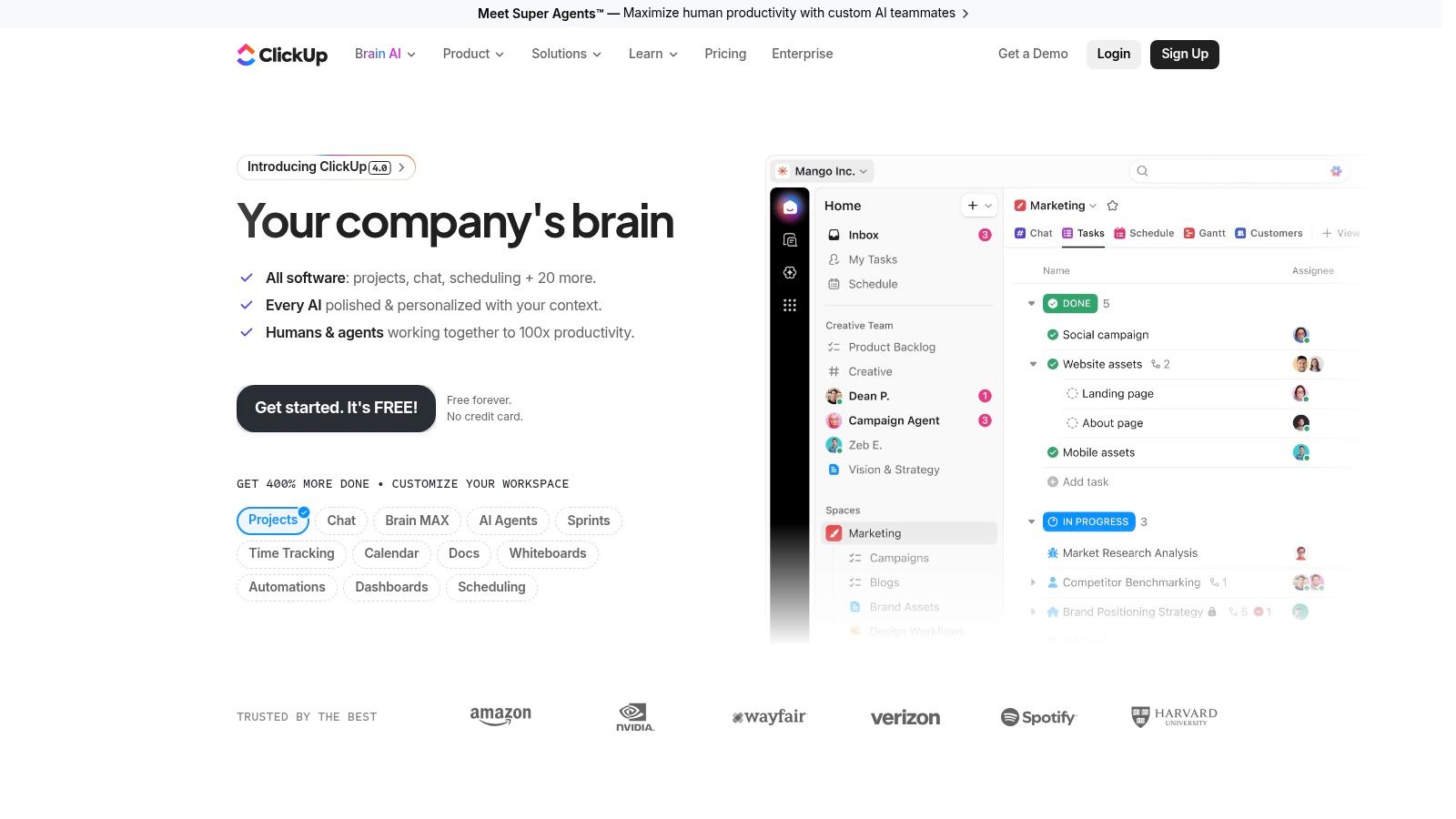
ClickUp appeals to remote teams for one reason. Consolidation.
Tasks, docs, whiteboards, dashboards, goals, chat, time tracking, and automations all sit under one roof. That's attractive if you're trying to reduce tool sprawl and stop paying for five separate platforms. For smaller remote teams, that can be a real advantage.
When ClickUp works well
ClickUp fits teams that want a central command center for execution. Agencies, ops teams, and product teams often like it because they can run delivery, internal docs, and reporting inside the same app. The different views also help different working styles. List for operators, board for execution, timeline for managers.
What works in practice:
- Use hierarchy carefully: Space, folder, list, and task levels can create clarity if you keep them simple.
- Standardize a few views: Too many custom setups make cross-team work harder.
- Automate repetitive admin: Status changes, assignees, and handoffs are where automation pays off.
Where teams get stuck
ClickUp can feel like a Swiss Army knife that forgot users only need two blades. The feature depth is real, but so is the setup load.
The biggest failure mode is overconfiguration. Teams create custom fields, statuses, dashboards, and automations before they've stabilized their workflow. Then nobody trusts the data because every team uses the system differently. The result isn't productivity. It's admin overhead.
If you have a process-minded team lead who can design the workspace and keep it clean, ClickUp can replace a lot of other software. If you don't, it can become one of the heavier productivity tools for remote workers to maintain. It's powerful, but it rewards discipline more than experimentation.
5. Asana

Asana works best for one job: keeping cross-functional work moving without constant check-ins. If ClickUp gives teams a lot of ways to model work, Asana gives them a narrower operating system that is often easier to trust week after week.
That trade-off matters for remote teams. You usually do not need endless customization. You need clean ownership, clear due dates, visible dependencies, and a way for managers to see risk before a deadline slips.
Best for structured coordination
Asana is strong when requests come from one team, execution happens in another, and approval sits somewhere else. Marketing launches, content pipelines, campaign production, product rollouts, and recruiting loops all fit that pattern well.
The workflows that hold up in practice are simple:
- Forms collect incoming work: requests enter the same queue instead of getting lost in Slack threads
- Projects track stages and dependencies: handoffs are visible, and blockers show up early
- Rules handle routine updates: task assignment, status changes, and reminders happen automatically
- Portfolios give leadership one view: team leads can review progress without asking each project owner for a manual update
A common remote setup on my teams looks like this. A request starts in Slack, but the actual work begins only after someone submits an Asana form. The task lands in the right project with the right owner and due date. Specs live in Notion. Client or stakeholder communication happens by email, and an AI email assistant like Draftery helps draft status updates and approval follow-ups in the sender's real voice. Asana remains the source of truth for what is happening, who is responsible, and what is blocked.
That division of labor is why Asana earns a place on this list. It is not trying to be a whiteboard, a doc hub, and an inbox at the same time.
Where teams get value fast
Asana pays off quickly when a team already knows its process but needs more consistency. You can set up a campaign template, define the approval path, add automations for recurring steps, and get immediate visibility across active work.
Managers usually notice three improvements first. Fewer status meetings. Fewer missed handoffs. Fewer "who owns this?" messages.
Trade-offs
Asana gets less appealing if your team wants heavy doc collaboration, highly customized data structures, or deeply flexible workspace design. Notion handles knowledge better. ClickUp can model more edge cases. Asana wins by being opinionated enough to keep operations clean.
Cost is the other consideration. The basic experience is approachable, but portfolio management, workload planning, and some advanced reporting features become more relevant as the team grows, and that is where pricing matters more.
Poor setup causes familiar problems. Duplicate projects. Tasks that never close. Custom fields nobody uses. The fix is not more structure. It is better structure. Keep project templates tight, limit statuses, and decide which team owns each workflow before you build anything.
For remote teams that need dependable execution across functions, Asana is one of the safer choices. It helps teams turn requests into tracked work, tracked work into accountable delivery, and delivery into a system people can follow.
6. Miro

Miro solves a problem that project tools don't. Thinking together before execution starts.
Remote teams often struggle during discovery, planning, retrospectives, and workshops because those moments need visual collaboration. A task board is too rigid. A doc is too linear. Miro gives teams an infinite canvas where ideas, flows, diagrams, and sticky-note clusters can take shape.
Where Miro is worth it
Miro is strongest in product, design, strategy, research, and workshop-heavy environments. Journey maps, sprint planning, architecture flows, service blueprints, and retros all work better when people can see relationships on one board.
The facilitation features matter more than the canvas itself. Timers, voting, private mode, and templates make real workshops easier to run across time zones.
A good remote workshop flow often looks like this:
- Miro for exploration and mapping
- Notion for final documentation
- Asana or ClickUp for assigned follow-through
Remote collaboration breaks when teams try to jump straight from discussion to tasks. Miro gives the messy middle a proper place to happen.
The catch
Miro boards can become visual clutter fast. Teams add sticky notes, frames, arrows, screenshots, and comments until the board feels impossible to follow. The solution isn't “use Miro less.” It's better facilitation.
You need someone to frame the board, define sections, and close loops after the session. Otherwise the board becomes an artifact nobody opens again. Miro is excellent for collaboration, but it's not a long-term system of record. Use it for synthesis and workshop momentum, then move the outcomes into your documentation and project tools.
7. Loom

Loom cuts a specific kind of remote work waste. The 20-minute meeting scheduled just to explain a 3-minute screen change, a bug, or a process step.
It earns its place when written updates stop being efficient. If someone needs to see where you clicked, hear why a decision changed, or watch a workflow break in real time, video is faster than a long Slack thread and lighter than a live call.
The strongest use cases are operational, not performative. My team uses Loom for product QA walkthroughs, design feedback, onboarding clips, handoffs between time zones, and client explanations that would be clumsy in email. A short recording gives enough context to move work forward without asking everyone to be online at once.
A practical workflow looks like this:
- Record in Loom: Show the issue, decision, or walkthrough on screen.
- Share in Slack: Send the video to the right channel or person for quick async review.
- Attach to ClickUp, Asana, or Notion: Put the recording where the task or documentation already lives.
- Write the takeaway: Capture the decision, owner, or next step in text so it stays searchable.
That last step matters. Loom is excellent for explanation. It is weak as a long-term knowledge base.
Where Loom pays off
Loom works best when the message needs demonstration, not discussion. A product manager can record a feature review. An engineer can show a reproducible bug. A team lead can walk a new hire through recurring weekly tasks. Support and success teams can also pair Loom with an AI email assistant like Draftery. Record the explanation once, then use Draftery to send consistent follow-ups in your own voice without rewriting the same response all week.
That chaining effect is where Loom becomes more than a screen recorder. Video handles the nuance. Slack handles distribution. Notion stores the final process. Asana or ClickUp tracks the follow-through. Draftery handles the repetitive email reply that usually comes after.
The trade-offs
Loom creates hidden mess fast if teams treat it like a dumping ground. Unclear titles, no folders, and no written summary turn useful clips into a video graveyard. Search gets worse. Reuse drops. People record the same explanation again because they cannot find the first one.
There is also a judgment call on when not to use it. If the update is a simple yes or no, write the message. If the topic needs debate, run the meeting. Loom sits in the middle. It works best for context-rich explanation that does not require everyone live.
Used well, Loom removes low-value meetings without losing clarity. Used poorly, it just gives your team another inbox in video form.
8. Calendly

Calendly fixes one of the most annoying forms of invisible work. Scheduling.
For remote workers, especially consultants, recruiters, sales teams, and client-facing operators, the cost of back-and-forth scheduling isn't just time. It also breaks focus. You answer one email, switch to availability checking, adjust time zones, confirm a meeting link, then try to get back into real work.
The workflow benefit
Calendly handles one-to-one booking, team routing, round robin assignment, reminders, and integrations with Zoom, Google Meet, and Microsoft Teams. That means scheduling stops being a conversational loop and becomes a self-serve action.
A straightforward remote workflow looks like this:
- Calendly link in email signature or follow-up
- Booking creates the calendar event and meeting link
- Confirmation email goes out automatically
- Post-meeting notes move into Notion or Asana
This is one of the easiest wins in a remote stack because it removes coordination work from both sides.
Trade-offs that matter
Calendly is excellent when the meeting should happen and the only friction is logistics. It's less useful when you still need qualification, prep, or approval before booking. In those cases, routing rules and forms help, but they can also create more complexity than a simple human triage process.
For larger organizations, advanced security and admin controls may push you toward higher plans. For solo professionals and small teams, though, Calendly is usually a fast, low-drama improvement. It's not flashy. It just removes a repetitive task that never needed to be manual.
9. Grammarly
Grammarly earns its place in a remote stack because distributed teams spend a large share of the day writing. A quick Slack clarification, a client follow-up, a project handoff, a performance note, a support reply. Small writing mistakes turn into delays fast.
I would not put Grammarly in the same bucket as project management or scheduling tools. Its job is narrower. It improves the quality of the messages your team is already sending, especially in fast-moving environments where people write before they fully edit.
Best use case
Grammarly works well for teams that need cleaner writing across many tools, but do not need a full editorial process. The value is practical: fewer confusing sentences, fewer tone misfires, and less time spent polishing routine communication.
It is especially useful for:
- Client-facing teams: Cleaner emails, proposals, and follow-ups.
- Cross-functional teams: Clearer handoffs between departments.
- Managers: Faster feedback, summaries, and documentation.
- Support and operations teams: More consistent replies under time pressure.
That matters in remote work because communication quality affects execution speed. Analysts at CurrentWare note that remote teams often see productivity improvements when the right digital tools reduce communication friction, as summarized in CurrentWare's remote productivity analysis.
How it fits into a real workflow
On a remote team, Grammarly is rarely the star tool. It is the layer that cleans up the output from everything else.
A common chain looks like this:
- Slack or Gmail for the first draft
- Grammarly for grammar, clarity, and tone checks
- Notion or Google Docs for documentation
- Draftery for high-volume email replies that need to sound like you, not like a generic assistant
That last distinction matters. Grammarly helps refine writing. Draftery handles a different job. It automates replies in your authentic voice, which is far more useful when inbox volume is the problem and consistency matters across dozens of conversations.
Trade-offs that matter
Grammarly does not understand context the way a relationship-aware email assistant can. It can improve a sentence, but it will not reliably know how differently you should write to a CFO, a direct report, and a long-term client.
It also has a tendency to smooth out personality. Teams that accept every suggestion often end up with writing that is correct but flat. The better approach is to use it as a quality filter, then keep human judgment on tone, nuance, and intent.
Used that way, Grammarly saves time without sanding off your voice. For remote teams that live in text, that is a real operational gain.
10. Google Workspace

Google Workspace earns its place on remote teams for a simple reason. It handles the daily operational load better than almost any all-purpose suite.
Gmail, Calendar, Meet, Drive, Docs, Sheets, Slides, admin controls, and shared storage give distributed teams one place to run communication, scheduling, files, and live collaboration. That breadth matters in practice. A remote stack gets fragile fast when basic work is scattered across too many systems.
For team leads, the biggest advantage is setup speed. New hires already know Gmail. Contractors can jump into a Doc without a long walkthrough. Clients usually understand Calendar invites and Meet links on the first try. That lowers support overhead and keeps onboarding from turning into an IT project.
The shared file layer matters just as much. Google Drive and similar shared storage tools are widely used because centralized access to files reduces friction across distributed work, and project coordination platforms have become standard for remote teams using structured software workflows, according to this analysis of remote work productivity and tool adoption.
On a real remote team, Google Workspace usually acts as the operating layer that other tools plug into.
A practical chain looks like this:
- Calendly books the meeting and writes it to Google Calendar
- Meet runs the call
- Loom handles the async follow-up if someone misses it
- Docs captures notes and decisions
- Drive stores the assets
- Draftery drafts the follow-up emails in your voice from Gmail
That last step is where generic tool lists usually stop too early. Gmail gives you the inbox. Draftery handles the repetitive reply work inside that inbox, especially for leaders who send the same kind of updates, client follow-ups, and scheduling responses all week but still need each message to sound like them. That pairing saves more time than trying to force Gmail alone to do high-volume communication work.
There are trade-offs. Google Docs are fast and reliable for collaborative drafting, but they are weaker than Notion for connected knowledge systems. Meet is dependable, but Loom is better for updates that do not need a live call. Sheets can cover light tracking, but once work needs ownership, dependencies, and reporting, teams usually outgrow it and move that layer into ClickUp or Asana.
That is the right way to use Google Workspace. Keep it as the base system, then add specialist tools by job-to-be-done. For remote teams, that approach is usually cleaner, cheaper, and easier to maintain than trying to replace the entire Google layer with one all-in-one platform.
Top 10 Remote Productivity Tools: Feature Comparison
| Product | Core focus & USP | UX / Quality ★ | Value & Price 💰 | Target Audience 👥 | Key Features ✨ |
|---|---|---|---|---|---|
| Draftery 🏆 | Gmail AI drafts that match your voice per‑recipient | ★★★★☆, drafts appear in Gmail Drafts, fast learning | 💰 $19/mo Std · $39/mo Pro · 7‑day free | 👥 Founders, consultants, execs, freelancers | ✨ Per‑recipient voice, one‑click Gmail, privacy‑first, continuous learning |
| Slack | Team chat, channels & async coordination | ★★★★☆, real‑time, fast catch‑ups; can be noisy | 💰 Free → paid per‑seat; scales with org size | 👥 Distributed teams, ops, engineering, product | ✨ Channels, Huddles, integrations, AI summaries |
| Notion | All‑in‑one docs, DBs & knowledge platform | ★★★★☆, highly flexible; needs structure | 💰 Free → paid; AI features/Agents use credits | 👥 Teams needing knowledge base & lightweight PM | ✨ Pages/databases, Notion AI, custom Agents |
| ClickUp | Unified tasks, docs, chat, automations | ★★★☆☆, feature‑rich but complex setup | 💰 Competitive annual pricing; AI add‑ons may cost | 👥 PMs, ops, small teams consolidating tools | ✨ Multiple task views, automations, time tracking, Brain AI |
| Asana | Task + portfolio management & reporting | ★★★★☆, clear timelines & program views | 💰 Per‑seat tiers; higher tiers for advanced features | 👥 PMs, program leads, mid→large teams | ✨ Timelines/Gantt, Portfolios, automations, AI credits |
| Miro | Infinite canvas for workshops & brainstorming | ★★★★☆, best for facilitation; can be heavy | 💰 Free → paid; large boards need business plans | 👥 Designers, product teams, facilitators | ✨ Infinite canvas, templates, facilitation tools, AI Sidekicks |
| Loom | Async screen+camera messaging & recaps | ★★★★☆, fast recording & sharing | 💰 Free → paid; branding/admin on higher tiers | 👥 Sales, onboarding, reviewers, async teams | ✨ One‑click screen+cam, AI recaps, transcripts & captions |
| Calendly | Automated scheduling & booking pages | ★★★★☆, removes booking friction | 💰 Free → paid; Teams/Enterprise for advanced routing | 👥 Consultants, sales, recruiting, customer success | ✨ Round‑robin, calendar integrations, reminders, payments |
| Grammarly | Writing clarity, tone & brand consistency | ★★★★☆, strong edits; occasional over‑rewrites | 💰 Free → Pro/Enterprise for team controls | 👥 Writers, client‑facing pros, teams | ✨ Grammar/tone checks, style guides, generative suggestions |
| Google Workspace | End‑to‑end productivity suite with AI | ★★★★☆, integrated tools; admin complexity | 💰 Per‑user pricing; enterprise tiers for security/features | 👥 Enterprises & orgs needing full toolchain | ✨ Gmail, Drive, Docs, Meet, Gemini AI, admin controls |
Stop Juggling Tools, Start Building Systems
Remote work is no longer an experiment. For a lot of teams, it is the default operating model. The practical question is not which app has the longest feature list. It is which tool owns each job, and how work moves from one tool to the next without people re-explaining the same context all day.
That is the difference between a stack and a system.
Teams get more value from clear boundaries than from extra subscriptions. Slack handles fast coordination. Notion stores decisions, playbooks, and reference material. ClickUp or Asana owns execution. Miro gives teams a place to think through messy problems before they turn into tasks. Loom replaces meetings that only need a walkthrough. Calendly removes the scheduling back-and-forth. Google Workspace stays underneath everything for docs, files, calendars, and email. Grammarly helps clean up written communication before it goes out.
Draftery fits into a category a lot of roundups underplay. Inbox work.
That matters because email still carries client requests, approvals, recruiting, partnerships, handoffs, and follow-ups that never belong in chat. On remote teams I have led, the inbox bottleneck is often less visible than meeting overload, but it costs just as much focus. A teammate answers the same type of message ten times, loses half an hour to tone-checking, then falls behind on actual project work. Multiply that across a week and the drag is obvious.
A better setup chains tools together by job-to-be-done. A client question lands in Gmail. Draftery prepares a reply in the sender's usual voice. If the answer needs internal input, Slack handles the quick clarification. If the question exposes a repeat issue, the team updates the SOP in Notion. If action is required, ClickUp or Asana gets the task with an owner and deadline. If the issue is easier to show than explain, Loom records the walkthrough. That is what a working remote system looks like. Fewer handoffs, less duplicate effort, and less context loss.
The trade-off is discipline. Clear systems can feel restrictive at first, especially for teams used to handling everything in chat. But the alternative is worse. Work gets buried in threads, project tools turn into partial mirrors of reality, and documentation goes stale because nobody knows where the final version belongs.
The strongest remote stacks are boring in the right way. People know where to ask, where to document, where to decide, and where to track progress.
If you are cleaning up your setup, start with the point of highest friction. Fix project ownership if work disappears in chat. Fix documentation if people keep interrupting each other for answers. Add Loom and tighter scheduling rules if meetings are crowding out execution. If email keeps pushing work into evenings and weekends, start there first. Inbox improvements often produce the fastest visible relief because they affect external communication and internal coordination at the same time.
No single platform solves remote productivity. Good systems do. They reduce the tiny decisions that drain attention, and they give every tool a clear role.
If email is the part of remote work that keeps eating your day, Draftery is worth trying first. It drafts Gmail replies in your own voice, adjusts by recipient, keeps you in control, and cuts repetitive inbox work without turning your messages into generic AI output. Start with the free trial and see whether your next week feels lighter.